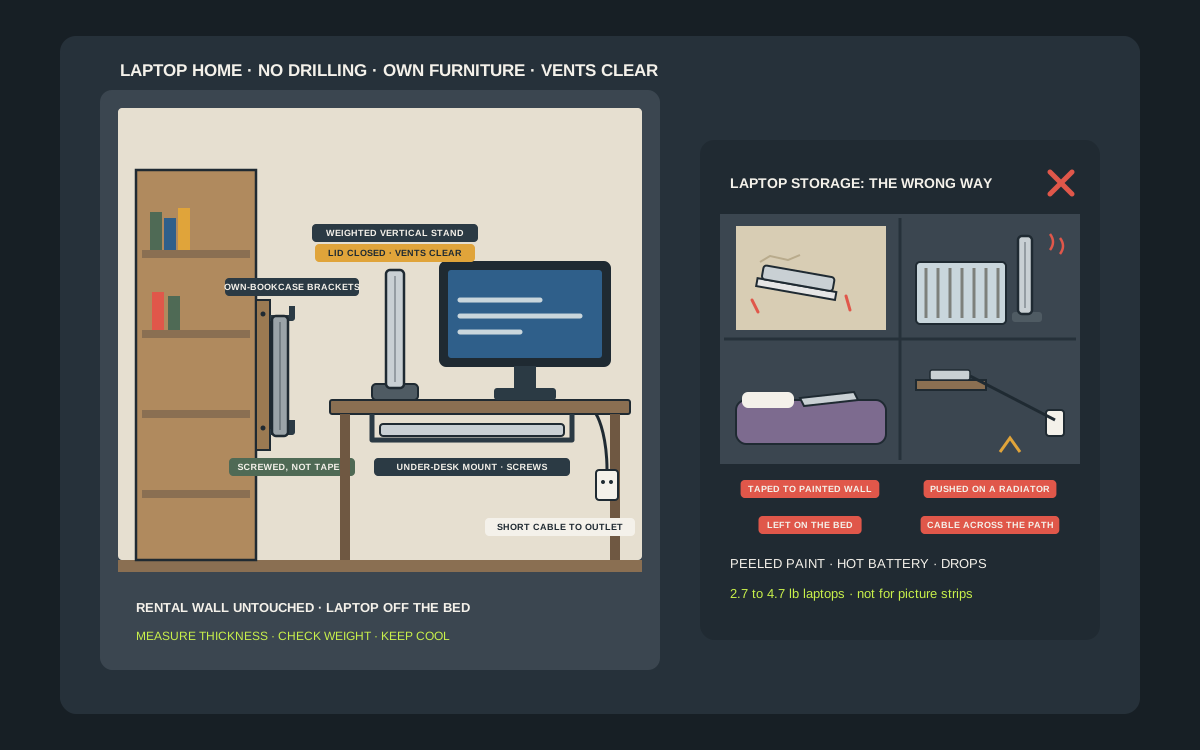
In a small apartment the laptop never has a home. It lives on the couch, the bed, the kitchen counter and the one chair you wanted to sit on, and every evening it is one elbow away from the floor. Getting it off the flat surfaces is a good idea. Getting it onto the wall, in a rental, needs more care than most product photos suggest. A laptop is one of the most expensive things you own, and it weighs more than people think: Apple lists the 13-inch MacBook Air at 2.7 lb and the 16-inch MacBook Pro at 4.7 lb, before you count the charger. That is more than some adhesive-only mounts are rated for, and makers of strong-tape holders, such as Brainwavz, warn against sticking them to painted walls, which is what almost every apartment has. The good news is that the best no-drill answers cost well under $50 and do not need the landlord’s wall at all: a vertical stand on the desk, slim brackets screwed into furniture you own, or a slide-in mount under your own desktop. This guide sorts out which one fits your laptop, your apartment and the way you work, using real laptop weights and the makers’ own fitting limits.
Shop adjustable vertical laptop stands on Amazon
Who this is for
- Renters who want the laptop off the couch, the bed and the kitchen counter without drilling holes or losing a deposit
- Anyone working from a small desk who runs the laptop closed with a monitor, keyboard and mouse and wants the desk space back
- Students and shared-flat tenants who need one safe, obvious place to park a laptop at night
- People with a thick work or gaming laptop who have found that slim one-size holders simply do not fit
Quick answer
For most apartments, the best under-$50 laptop holder is a vertical desk stand with soft pads, set to the thickness of your laptop. It holds the machine upright behind the monitor, takes almost no desk space and needs no mounting. If you want it off the desk entirely, screw a pair of slim vertical brackets or a slide-in mount to furniture you own, such as the side of a bookcase or the underside of your desk, rather than sticking anything to a painted rental wall. Measure the laptop’s thickness before you buy, check its weight against the holder’s limit with the adhesive and with screws, keep it away from radiators and sunny windows, and never trust a laptop to picture-hanging strips.
Quick picks
- Best overall: a weighted or auto-adjusting vertical desk stand. It needs no mounting at all, it takes about the floor space of a paperback on your desk, and it cannot pull paint off a rental wall because it never touches one.
- Best for a closed laptop driving a monitor: a vertical stand with soft pads and a cable catch, so the laptop runs in closed-display mode behind the monitor with an external keyboard, mouse and power, and lifts out in one move when you leave.
- Best for a thick or heavy laptop: an adjustable-width stand with a steel base, set to the exact thickness of your machine. HumanCentric’s wood and leather stands adjust from 0.5 to 1.5 in with four screws in the base, which covers most thick work and gaming laptops.
- Best wall-style holder: a pair of slim vertical brackets screwed to the side panel of your own bookcase, desk or wardrobe, not to the landlord’s wall. Brainwavz sells a two-bracket wall holder for devices up to 1.1 in thick when screwed in, so measure first.
- Best under the desk: a slide-in under-desk mount screwed to the underside of your own desk. It frees the whole desktop, but most laptops are too heavy for the adhesive-only version, so use the screws.
- Best for a laptop plus a tablet: a multi-slot vertical organizer on the desk or a shelf, with one padded slot per device, so the laptop, the tablet and a notebook stand upright instead of piling up flat.
Quick comparison
| Option | Best for | How it holds the laptop | Trade-off |
|---|---|---|---|
| Auto-adjusting aluminum vertical stand | Thin and mid-size laptops up to 1 in | Spring grip sizes itself as you lower the laptop in | Lighter base; check it suits a heavy laptop |
| Screw-adjusted stand with steel base | Thick work and gaming laptops | Set the slot once with a hex key, 0.5 to 1.5 in on HumanCentric’s | Re-set it if you change laptops |
| Insert-based vertical stand | Specific MacBook models | Silicone insert shaped to that model’s edges | Wrong insert means a poor fit |
| Slim brackets on your own furniture | Getting the laptop off the desk | Two brackets screwed to a bookcase or desk side panel | Needs a sturdy panel and a measured gap |
| Slim brackets on tape | Smooth, unpainted surfaces only | VHB pads on the brackets, e.g. 6.6 lb on Brainwavz’s | Makers warn against painted walls |
| Under-desk slide-in mount | Clearing the whole desk | Laptop slides in flat under the desktop with a backstop | Use screws; adhesive limits are low |
| Multi-slot vertical organizer | A laptop plus a tablet or notebook | One padded upright slot per device | Takes more desk width |
| Leaning or freestanding shelf | A real shelf without wall fixings | Laptop lies flat on a deep shelf | Floor space; anchor tall units as directed |
Adjustable vertical laptop standsSlim vertical laptop wall bracketsUnder-desk laptop mounts
What to look for
Thickness first, then width
Every vertical holder has a slot, and the slot decides everything. Apple lists the 13-inch MacBook Air at 0.44 in thick, the 14-inch MacBook Pro at 0.61 in and the 16-inch MacBook Pro at 0.66 in, while many work and gaming laptops are closer to an inch. A holder that grips a bare thin laptop may not take the same laptop in a case, and a fixed slot made for thin machines simply will not take a thick one. Measure the laptop closed, with its case or skin if you leave it on, and compare that number with the holder’s stated range.
Weight against the real limit
Look up your laptop’s weight on the maker’s spec page, not on a sticker guess. A 15-inch MacBook Air is 3.3 lb, a 14-inch MacBook Pro 3.4 lb and a 16-inch 4.7 lb. Then read the holder’s limit for each fixing method. Brainwavz, for example, rates the adhesive-only version of its under-desk laptop mount for 2 lb, which is less than even a 13-inch MacBook Air, and tells you to use the included screws for laptops.
Where the fixing goes
In a rental, the safest surfaces are the ones you own: the side of a bookcase, the back of a desk, the underside of a desktop, a wardrobe panel. A few small screws in your own furniture leave the landlord’s wall untouched. Brainwavz warns against putting its VHB-tape holders on painted, damp or plastered walls because the paint or plaster may come off, and 3M’s Command instructions say not to hang valuable or irreplaceable items with its strips.
Soft contact points
A laptop’s lid and edges scratch and dent easily. Look for silicone, felt or foam where the holder touches the machine. HumanCentric’s aluminum stand uses silicone pads, its wood and leather stands have a felt-lined core, and Twelve South’s BookArc uses silicone inserts sized to specific MacBook models.
Stability when you plug in a cable
A vertical stand gets pushed sideways every time you plug in a cable or an SD card. A heavy or weighted base, a snug grip and rubber feet keep it upright. One long-term reviewer found Twelve South’s lighter, insert-free BookArc Flex easier to tip than the original BookArc, so if your desk gets bumped a lot, weight matters more than looks.
Air and heat
A laptop running closed in a stand still needs to shed heat. Keep its vents clear of the stand, the wall and the monitor, and keep the whole setup away from radiators, heaters and a sunny window. Apple’s ideal comfort zone for its devices is 62 to 72 F (16 to 22 C), and it warns that ambient temperatures above 95 F (35 C) can permanently damage battery capacity.
Wall shelf, vertical holder or desk stand: what each one is
Vertical desk stands
A vertical stand sits on the desk and holds a closed laptop on its edge, like a book on a shelf. It needs no screws, no tape and no wall. HumanCentric’s aluminum stand adjusts itself to laptops up to 1 in thick when you lower the machine in, and Twelve South’s BookArc Flex takes most laptops up to 16 in and 1 in thick without inserts.
Vertical wall or panel brackets
A pair of slim brackets mounted a laptop’s width apart, so the laptop drops in edge-down and stands upright against a vertical surface. Brainwavz’s wall holder is a typical example: two brackets, pre-fitted VHB pads, plus screws and wall plugs, for devices up to 1.2 in thick on the tape or 1.1 in with the screws.
Under-desk mounts
Brackets fixed under the desktop that the laptop slides into flat, like a drawer with no box. They clear the whole desk surface and keep the laptop out of reach of spilled coffee. Brainwavz’s under-desk version takes devices up to about 1.8 to 1.9 in thick depending on whether you use its foam pads.
Wall shelves
A shelf the laptop lies on flat. On a painted rental wall, an adhesive shelf is the riskiest place to keep a laptop: the load is heavy, it is pulled away from the wall every time you lift the machine off, and a failure drops it straight onto the floor. If you want a real shelf, use a leaning or freestanding shelf unit, or a shelf on your own furniture.
Why the landlord’s wall is the last choice
Painted walls and strong tape do not mix
The adhesive that holds hardest, the 3M VHB tape used on many device mounts, bonds to the paint, not the wall behind it. Brainwavz says plainly not to place its VHB holders on painted, damp or plastered walls because paint or plaster may come off. That is exactly the damage a deposit check looks for.
Removable strips are not made for laptops
Command picture-hanging strips are rated per pair, about 4 lb for a large pair, and 3M’s instructions say they are not for shelves and not for valuable or irreplaceable items. A laptop is both heavy and valuable, so strips belong on picture frames and light organizers, not under a computer.
Every lift is a peel
A laptop in a wall holder is lifted out and dropped back in once or twice a day. Each time, the holder takes a small sideways and outward pull. Adhesive is strongest in shear, straight down along the wall, and weakest when it is peeled outward. A holder screwed to a panel does not care.
Your furniture is fair game
The side of a bookcase, the end panel of a desk or the inside of a wardrobe door is yours. Two or four short screws there leave no mark on the apartment at all, and the furniture moves with you when you leave.
Know your laptop: real weights and thickness
Thin and light machines
Apple lists the 13-inch MacBook Air (M5) at 2.7 lb, 0.44 in thick, 11.97 in wide and 8.46 in deep, and the 15-inch at 3.3 lb and 0.45 in. Machines in this class fit almost every vertical stand and slim bracket, but they are already heavier than many adhesive-only limits.
Pro and creator machines
The 14-inch MacBook Pro (M5) is listed at 3.4 lb and 0.61 in, and the 16-inch at 4.7 lb and 0.66 in. They fit most stands, but the 16-inch is near the top of what a light, unweighted stand should carry, and its width means a longer bracket or a deeper stand.
Thick work and gaming laptops
Many gaming and workstation laptops are close to or over an inch thick and well over 5 lb with their power brick. Measure yours. A fixed-width holder sized for an ultrabook will not take it, so look for an adjustable stand with a stated range, such as HumanCentric’s 0.5 to 1.5 in wood and leather stands.
Cases, skins and sleeves
A hard shell case adds thickness and changes the edge shape. HumanCentric says its stands work with skins and cases; Twelve South’s original BookArc uses inserts shaped to bare MacBook edges. If the case stays on, measure the laptop in the case.
Vertical desk stands: the easy win
Why they suit renters
Nothing to mount, nothing to remove at move-out and nothing to explain to the landlord. The laptop stands on its edge on the desk, using a footprint of a few inches by eight or nine. Twelve South lists the original BookArc at 3.6 in wide and 8.46 in deep, and it weighs about a third of a pound.
Auto-adjusting versus screw-adjusted
HumanCentric’s aluminum stand has a spring mechanism that sizes itself to the laptop when you drop it in, for machines up to 1 in thick. Its wood and leather versions are set with four screws and a hex key, from 0.5 to 1.5 in, and have a steel base for extra weight. Self-adjusting is quicker; screw-adjusted is steadier once set.
Model-specific inserts
The original BookArc grips each MacBook with a silicone insert made for that model. Twelve South now calls it a legacy design and says its newest insert covers the 13- and 15-inch MacBook Air M2 and M3, while the insert-free BookArc Flex is the choice for newer machines. If you buy a used or old-stock insert stand, check the insert letter against your exact laptop.
What to check before buying
A stated thickness range that includes your laptop, soft pads or inserts, a base wide or heavy enough not to tip when you plug in a cable, and rubber feet. Premium brand stands can list near or above $50, while plain adjustable stands usually cost much less, so check the current listing.
Running the laptop closed in a stand
What closed-display mode needs
To use a MacBook with the lid shut, Apple’s guidance is to connect an external display, an external keyboard and mouse or trackpad, and power; a display that supplies power over USB-C can cover the power part. On Apple silicon Macs you may need to allow the accessories to connect when prompted. Windows laptops have a similar setting for what happens when the lid closes.
Cable management
A cable catch or a couple of adhesive cable clips at the back of the desk keep the charger and display cables in place when you lift the laptop out, so you are not fishing for them under the desk. HumanCentric’s UnderDock kit includes cable clips and a desk cable catch for this reason.
Heat in a vertical stand
A closed laptop under heavy load runs warm. Stand it with the vents free, a hand’s width from the wall and the back of the monitor, and away from a radiator. Apple says charging in high ambient temperatures can damage a battery further and that its software may limit charging above 80% when battery temperatures run high.
Cases and charging
Apple notes that charging a device inside certain styles of case can generate excess heat. If the laptop feels hot in the stand while charging, take the case off.
Slim brackets on your own furniture
The best wall-style option for renters
If you want the laptop on a vertical surface rather than on the desk, mount a pair of slim brackets on the side panel of a sturdy bookcase or desk you own, at the height of the desktop or just above it. The laptop drops in edge-down and is out of the way but always at hand.
Use the screws, not just the tape
Brainwavz rates the tape on its wall holder for up to 6.6 lb and asks you to wait at least six hours before loading it, but it recommends its screw hardware for heavier laptops and expensive equipment. On a laminate or wood furniture panel, small screws are the stronger and calmer choice, and they come with the kit.
Check the panel and the screw length
Particleboard bookcase sides are often around half an inch to three quarters of an inch thick. Choose screws short enough not to break through the other side, drill a small pilot hole and do not overtighten. If the panel is thin, put the brackets near a shelf or a joint, where the panel is better supported.
Spacing and height
Set the brackets a little wider than the laptop is deep, so it drops in without scraping, and low enough that the laptop’s bottom edge rests on the bracket lips, not on the floor or a skirting board. Hang it where a chair, a door or a vacuum will not knock it.
Under-desk mounts
When they make sense
An under-desk mount clears the desk top completely and hides the laptop under the work surface. It suits a laptop that runs closed all day with a monitor, or one that is parked there every night.
Screws for anything that is a laptop
Brainwavz’s under-desk holder is rated for 2 lb on its VHB tape and its maker recommends screws for laptops and heavier devices. HumanCentric’s UnderDock fixes with VHB tape on finished surfaces or two wood screws on unfinished surfaces thicker than 3/4 in. Under a desktop, gravity pulls straight away from the tape, which is the hardest job adhesive can have, so screw into a desk you own.
Mind your knees and the drawer
Mount it toward the back of the desk, clear of your knees, the chair arms and any keyboard tray or drawer, and check the laptop’s charging port is reachable from the side it slides in.
A backstop matters
Brainwavz’s under-desk kit has a third rear bracket as a backstop so the laptop cannot slide out the back. Whatever you buy, make sure the laptop cannot slip out of either end.
If you really want a laptop wall shelf
Lean it, do not stick it
A leaning ladder shelf or a narrow freestanding shelf unit gives the laptop a shelf at desk height without a single fixing in the wall. Choose a deep shelf, at least as deep as the laptop, and anchor tall units the way the maker tells you to.
A shelf on your own furniture
A shelf bracket screwed to the side of your own wardrobe or desk hutch is fine. A laptop-sized shelf glued to painted drywall is not.
Ask before you fix anything to the wall
Some landlords allow a few small screws, and some leases list what you can and cannot do. If a proper wall shelf is the only thing that will work, ask in writing first, and fix it into studs with screws.
What adhesive shelves are good for here
A small adhesive shelf is a good spot for the light things around a laptop: a phone, earbuds, a cable box. Keep the laptop itself on a stand, a bracket on furniture or a real shelf.
Where the holder goes in a small apartment
Next to the outlet
Put the laptop’s home within reach of an outlet or power strip, so the charger cable is short and does not cross a walkway. A stretched cable is how laptops get pulled off desks.
Away from heat and sun
Keep it off windowsills, away from radiators, heaters and the oven, and out of afternoon sun. Apple lists MacBook storage up to 113 F (45 C) and normal use from 50 to 95 F (10 to 35 C), and sun through a window can take a black laptop past that.
Out of the kitchen splash zone
If you work at the kitchen table, park the laptop at the far end from the sink and the kettle, or on the bookcase side, not on the counter.
Not on the bed or the couch
Soft surfaces block vents and let the laptop slide off. A fixed home gives it somewhere better to be.
Kids, pets and roommates
Cats and desks
A cat walking along a desk can push a light stand over. A weighted base or a bracket on furniture is steadier, and a laptop standing behind the monitor is less in the way than one lying flat.
Small children
A laptop on a low bracket or stand is a temptation. Mount brackets above a small child’s reach and keep the charger cable tucked away so it cannot be pulled.
Shared rooms
In a shared flat, a clear, fixed home for each person’s laptop stops the nightly hunt and the accidental sit. A label on a bracket pair costs nothing.
Spills
A vertical stand keeps the laptop out of the puddle if a glass goes over, which is one of the reasons HumanCentric gives for using one.
Long breaks and storage
Going away for weeks
If a laptop will sit unused for a long time, Apple recommends storing it at around 50% charge, powered down, in a cool, dry place below 90 F (32 C), and topping it back up to 50% every six months if it stays stored. Do not leave it fully charged or fully flat.
Summer in a top-floor flat
A small apartment under the roof can get very hot in summer. A laptop left charging in a stand by a south window is the worst case. Move it to the coolest wall.
Winter by the radiator
Cold is easier on a battery than heat. A laptop that has come in from the cold should warm up before you charge it, but the bigger winter risk is a stand pushed right up against a radiator.
Moving out without a trace
Stands and organizers
Nothing to do. They go in the box with the laptop, which is the strongest argument for starting with a stand in a rental.
Brackets on your own furniture
Leave them on the bookcase or desk if you are keeping it, or unscrew them and fill the small pilot holes with a wax filler stick in a matching color. The apartment itself has nothing to repair.
Anything you did stick to a wall
If you did use tape on a wall, remove it slowly and patiently. For Command products, 3M’s method is to stretch the tab straight down along the wall, never pull it toward you. Strong VHB pads are a different matter and can take paint with them, which is why they belong on furniture, tile or glass you are allowed to use, not on fresh rental paint.
Take a photo at move-in
A dated photo of the wall where the desk stands is the simplest way to show what was there before you arrived.
Upright or flat: does it matter to the laptop?
Standing on its edge is fine
Laptops are built to be carried in bags on their edge all day. Standing one upright in a padded stand does it no harm, and the makers of vertical stands design them for exactly that.
What does matter is the grip
A hard, bare slot can scuff the finish and a loose one lets the laptop rock every time you plug in. Soft pads, the right insert or the right width setting are what protect the machine.
Lid closed, not open
Vertical stands and slim brackets are made for a closed laptop. If you want to use the laptop’s own screen and keyboard, a flat riser or a tray on the desk is the better tool.
Three sample setups
The studio desk with a monitor
A weighted vertical stand behind the monitor holds the laptop closed, with power and display on a short cable caught at the back of the desk, an external keyboard and mouse in front and the charger on a power strip mounted to the back of the desk. Nothing touches the wall.
The bookcase office
Two slim brackets screwed to the side panel of a sturdy bookcase, just above desk height, hold the laptop on its edge at night. The charger lives on the shelf beside it, and a small adhesive cable clip keeps the lead tidy.
The shared flat with a tiny desk
An under-desk mount screwed toward the back of the desk holds one laptop flat, and a two-slot vertical organizer on the desk holds a tablet and a second laptop. Each person has a slot.
Where the $50 goes
One good stand
A plain adjustable vertical stand takes a small part of the budget; premium brand stands can take most of it or exceed it. Check the current price on the listing.
Brackets or an under-desk mount
A two-bracket wall holder or a three-bracket under-desk kit usually comes with its tape, screws and caps, so there is nothing else to buy.
Cable clips and a short cable
A few adhesive cable clips and a shorter charging cable finish the setup and stop the laptop being pulled off by its lead.
How to set it up in an afternoon
- Look up your laptop’s weight and thickness on the maker’s spec page, and measure it in its case if the case stays on.
- Decide where it will live: on the desk, on the side of your own furniture or under your own desk, near an outlet and away from heat and sun.
- Choose the holder whose stated thickness range and weight limit both cover your laptop, with the fixing you plan to use.
- For a stand, set the width to the laptop and check it does not tip when you plug in a cable.
- For brackets, mark the spacing with the laptop itself, drill small pilot holes in your furniture panel and screw them in.
- For an under-desk mount, fix it toward the back of the desk with screws, with the backstop in place.
- Route the charger and display cables with clips or a cable catch so they stay put when the laptop comes out.
- Drop the laptop in, run it for an hour and check the vents are clear and it is not getting hot.
- Tidy the old spot: the couch, the bed and the counter are now laptop-free.
Mistakes to avoid
- Sticking a laptop shelf or holder to painted rental drywall with strong tape.
- Trusting a laptop to picture-hanging strips or light adhesive hooks.
- Buying a holder before measuring the laptop’s thickness in its case.
- Using an adhesive-only under-desk mount for a laptop heavier than its rating.
- Choosing a light, tippy stand for a heavy laptop on a desk that gets bumped.
- Blocking the vents against the wall or the back of a monitor.
- Parking the laptop by a radiator, a heater or a sunny window.
- Leaving the charger cable stretched across a walkway or hanging where a child or a pet can pull it.
Related guides
Browse the hub: No-drill apartment storage under $50 - all guides
- Best Adhesive Phone Charging Wall Shelves for Apartments Under $50
- Best Adhesive Power Strip Wall Mounts for Apartments Under $50
- Best Adhesive Router & Modem Wall Shelves for Apartments Under $50
- Best Adhesive Game Controller Wall Holders for Apartments Under $50
- Best Adhesive Cable Clips & Cord Organizers for Apartments Under $50
- Best Adhesive Floating Shelves for Apartments Under $50 (No Drill)
- Best Apartment Kitchen Tablet & Recipe Holders Under $50 (No-Drill Wall & Cabinet Mounts)
FAQ
Can I mount a laptop on an apartment wall without drilling?
You can, but the landlord’s painted wall is the worst place for it. Strong VHB tape can pull paint off, and makers such as Brainwavz warn against using it on painted, damp or plastered walls. The safer no-drill options are a vertical desk stand, or slim brackets or an under-desk mount screwed into furniture you own.
Will Command strips hold a laptop?
They are not the right tool. Command large picture-hanging strips are rated about 4 lb per pair, 3M says they are not for shelves, and its instructions say not to hang valuable or irreplaceable items. Keep strips for frames and light organizers.
How heavy is a typical laptop?
Apple lists the 13-inch MacBook Air at 2.7 lb, the 15-inch at 3.3 lb, the 14-inch MacBook Pro at 3.4 lb and the 16-inch at 4.7 lb. Many gaming laptops weigh more. Always check your model’s spec page and compare it with the holder’s limit.
Is it safe to run a laptop closed in a vertical stand?
Yes, if it has air. Use it with an external display, keyboard, mouse and power, keep the vents clear of the wall and the monitor, and keep it away from radiators and sunny windows. Apple says ambient temperatures above 95 F (35 C) can permanently damage battery capacity.
Will a vertical stand fit a thick gaming laptop?
Only if its stated range covers it. Measure the laptop closed, in its case if you use one. Fixed slots made for thin laptops will not take it, while adjustable stands such as HumanCentric’s wood and leather models go from 0.5 to 1.5 in.
What should I do with a laptop I will not use for months?
Apple recommends storing it at about 50% charge, powered down, somewhere cool and dry below 90 F (32 C), and charging it back to 50% every six months if storage runs longer.
Bottom line
A laptop deserves a better home than the arm of the couch, and in a rental that home does not have to be the wall. For most people the answer is a vertical stand on the desk, sized to the laptop and heavy enough not to tip. If you want it off the desk, screw slim brackets or an under-desk mount into furniture you own. Measure the thickness, check the weight against the holder’s real limit for the fixing you will use, keep the vents clear and the heat away, and leave the picture strips for picture frames. That gets the laptop off the bed for good, and leaves the deposit where it belongs.